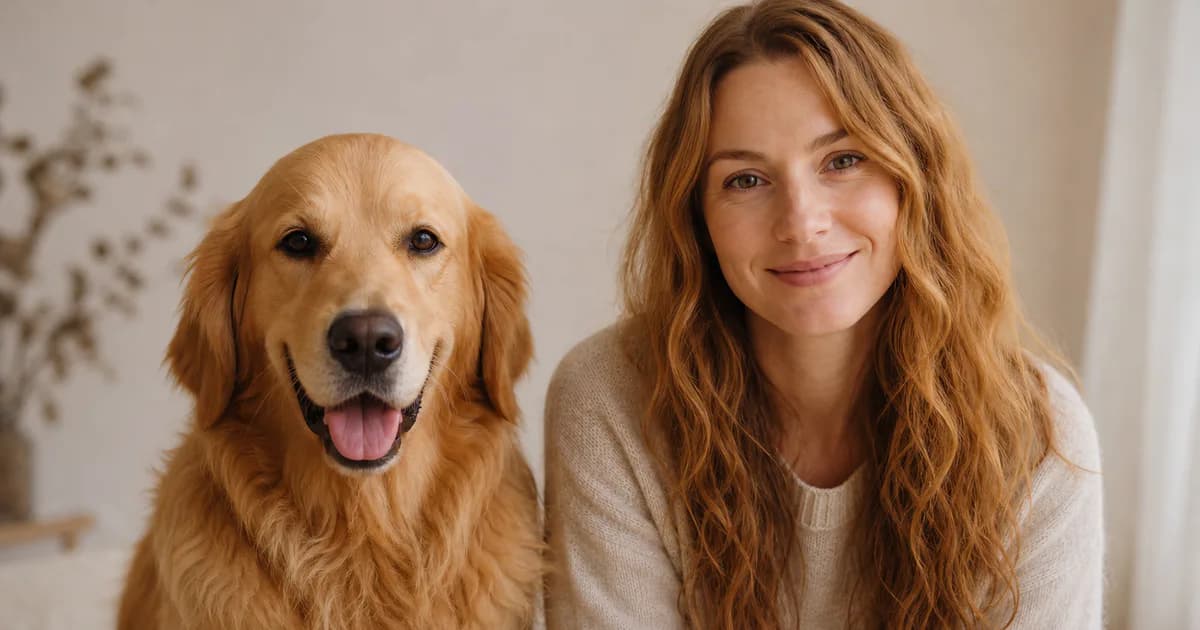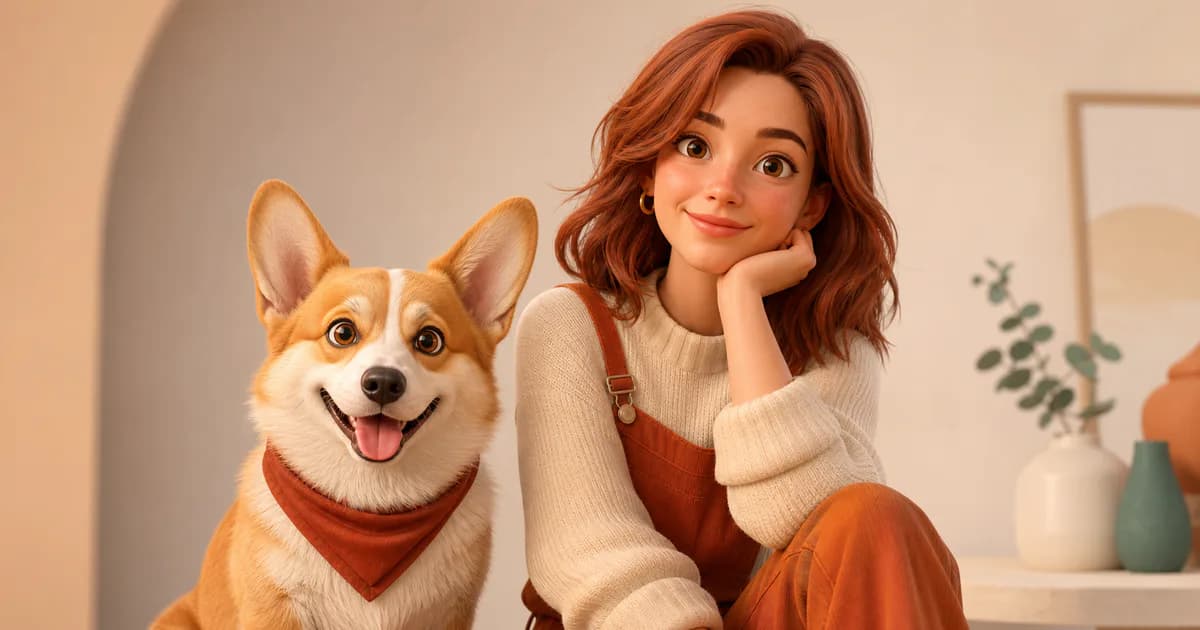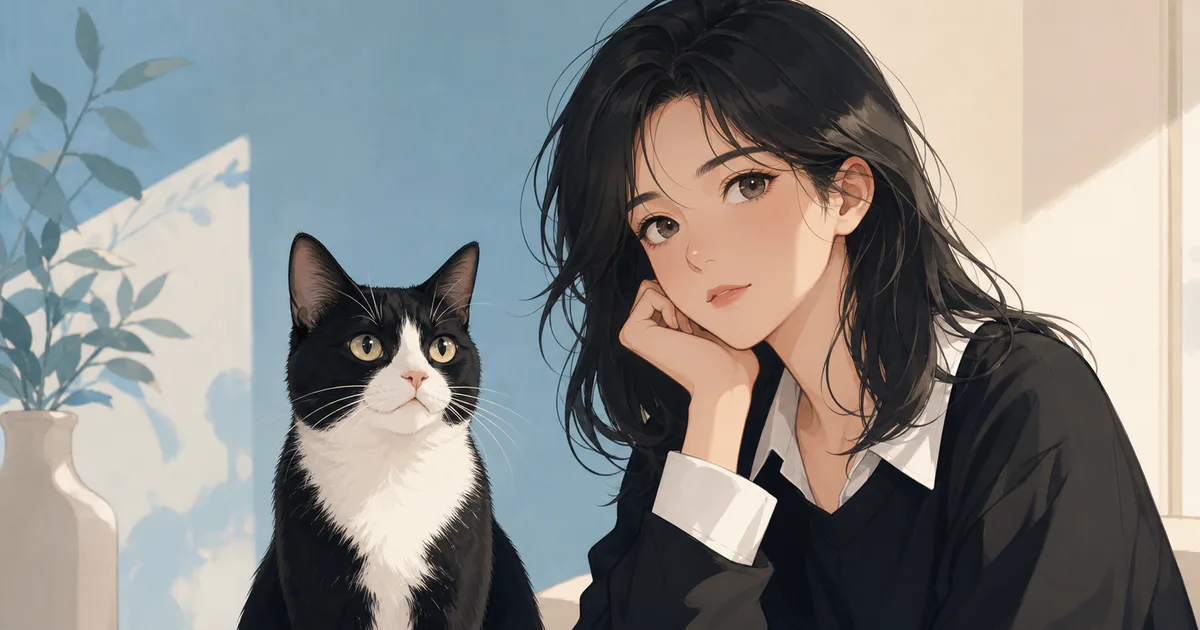
PetMorph’s Realistic style turns one pet photo into a human-style portrait with a photographic visual direction. It can use visible traits such as coloring, markings, expression, and overall mood as creative references. It does not reconstruct a specific real person, and it cannot guarantee that every feature will carry across exactly.
The source photo matters more than adding a long prompt. A clear image gives the generator more useful information and makes it easier for you to judge whether the result still feels connected to your pet.
The cover is an AI-generated editorial concept created for this guide, not a verified example produced by PetMorph.
What the current PetMorph workflow uses
On the creation page, you upload one pet photo and choose an age group, gender presentation, and visual style. Realistic is one of the six styles currently available. The interface also lets you decide whether to use the uploaded image as a reference and add a short description when extra context is useful.
Those choices guide the generation; they are not precision controls. Selecting an age group does not set an exact age, and a description cannot force a particular face, pose, or background.
Choose a photo with clear identity cues
A useful source image usually has:
- One pet as the obvious subject.
- Both eyes visible and reasonably sharp.
- A face that is not covered by a toy, hand, costume, or furniture.
- Even light across the face, without blown highlights or deep shadows.
- Enough space around the head and ears to avoid accidental cropping.
- Natural color, without a strong beauty filter or color cast.
A front-facing or gentle three-quarter view is the safest starting point. Side profiles can still work, but they provide less information about symmetry and may produce a less predictable human portrait.
What may carry into a realistic portrait
AI transformation is interpretive. A generated portrait may reference:
- Light or dark coloring through hair, clothing, or the overall palette.
- Distinctive patches through highlights, makeup-like accents, or contrast.
- A calm, alert, playful, or serious expression as human mood.
- Long or short fur through hairstyle, texture, or silhouette.
Animal anatomy should not be copied literally into a realistic human face. Eye color can be a reference, but eye size, pupil shape, eyelids, and gaze still need to look human. The same applies to the nose, muzzle, ears, and jaw.
Common reasons a result feels wrong
The eyes look unfocused or exaggerated
Start with a photo where the eyes are visible and looking in a consistent direction. Reflections, motion blur, and one hidden eye can give the generator conflicting information.
The portrait loses the pet’s coloring
Check whether the original photo has accurate white balance. Warm indoor light can make white fur appear yellow, while strong shadows can hide markings.
The face feels generic
Use a closer crop that still includes the full head and ears. A distant photo may describe the scene better than the pet.
The composition changes unexpectedly
Generative results vary. Backgrounds, clothing, hair, and pose may change even when the same source photo is used again. Treat each output as a new interpretation rather than a deterministic conversion.
A practical generation sequence
- Pick the clearest unfiltered portrait of one pet.
- Open Create and upload the image.
- Choose the age group and gender presentation you want for the human-style result.
- Select Realistic.
- Keep the reference-image option enabled when resemblance to the source matters.
- Add only short, relevant context, such as “calm expression” or “neutral studio background.”
- Review the output at full size before deciding whether to generate another variation.
If the first result misses an important feature, change one input at a time. Switching the source photo is often more useful than stacking many descriptive phrases.
Realistic, Anime, or 3D Animated?
Choose Realistic when you want a result that reads like portrait photography. Choose Anime when clean lines and illustrated expression matter more than photographic texture. Choose 3D Animated for rounded forms, stylized materials, and a more character-like presentation.
None of these styles is inherently more accurate. They make different creative tradeoffs, so the best choice depends on what you want the final image to feel like.
Costs, privacy, and expectations
Generation availability and credit requirements can change, so check the current pricing page instead of relying on an old article. Before uploading a personal image, review the Privacy Policy and Terms.
AI-generated portraits can contain visual errors. Inspect hands, eyes, accessories, text, and background details before printing or sharing the result. PetMorph provides a creative interpretation, not an identity guarantee or professional photography service.