
AI Pet Portrait
Create a Custom Pet Portrait from Your Photo
Upload one clear pet photo, choose from 10 distinct portrait styles, then generate an artwork you can save or share.
- 1 Upload Photo
- 2 Settings
- 3 Complete
Upload your pet photo
Choose one clear photo with your pet as the main subject.
Choose photo
Choose a Pet Portrait Style
Choose a Pet Portrait Style
Composition
Background
Your portrait will appear here
Upload a photo, choose a direction, and generate a portrait to review it here.
Create a Custom Pet Portrait from Your Photo
Upload one clear pet photo, choose from 10 distinct portrait styles, then generate an artwork you can save or share.
How to Create a Custom Pet Portrait
Upload a clear pet photo
Choose one image where your pet is the clear subject and its main features are visible.
Choose a portrait direction
Use the available portrait controls to guide the look you want to explore.
Generate, save, or try another version
Review the result, save the version you like, or adjust the available options to explore another interpretation.
Pet Portrait Photo Tips
- Use one pet in the frame so the portrait has a clear main subject.
- Choose a photo with visible eyes and facial features whenever possible.
- Use an original, well-lit image instead of a screenshot, collage, or heavily edited photo.
What Makes a Pet Portrait Recognizable
The output is an artistic AI interpretation. It can vary from the source photo and is not an exact copy of your pet.
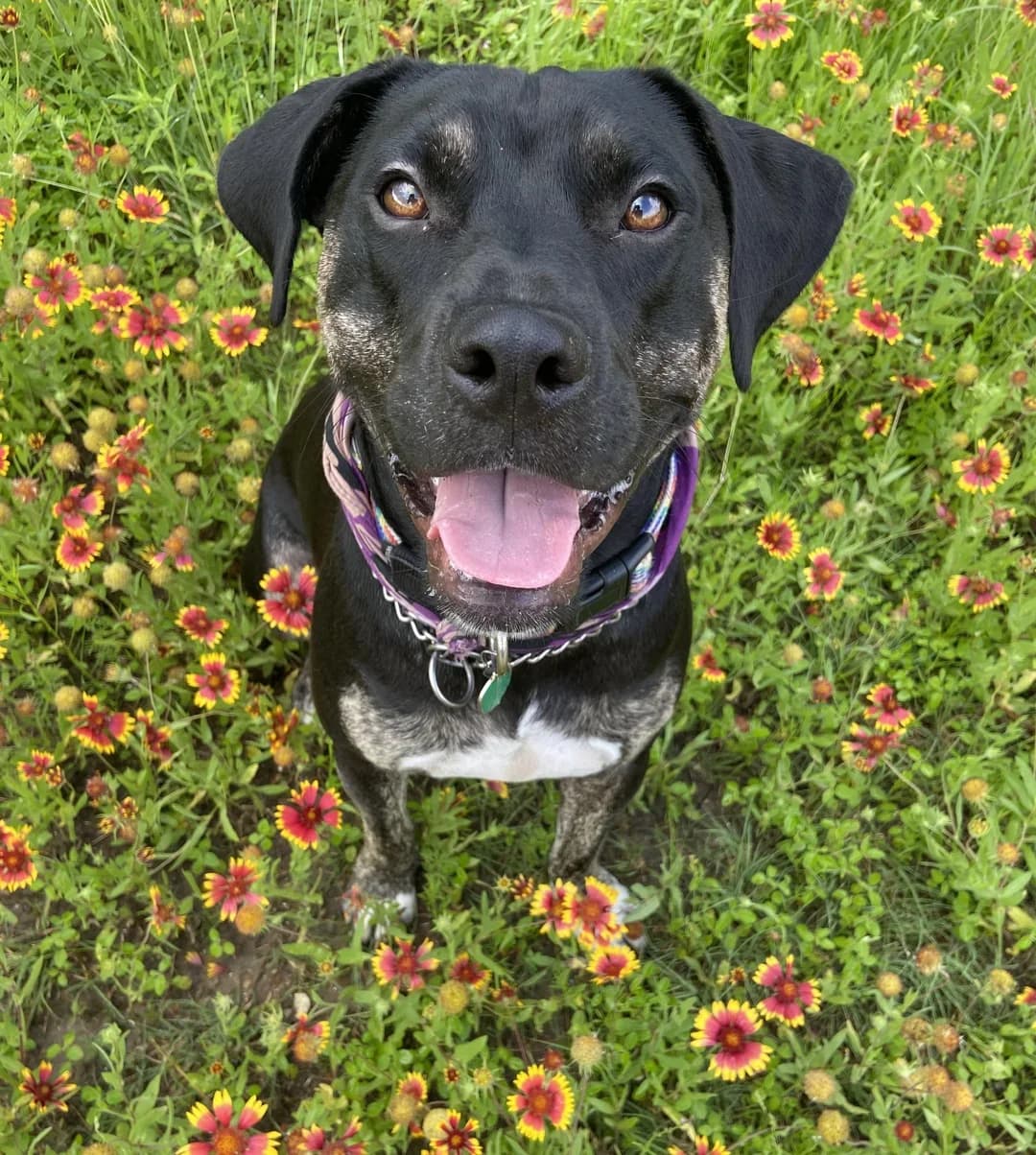
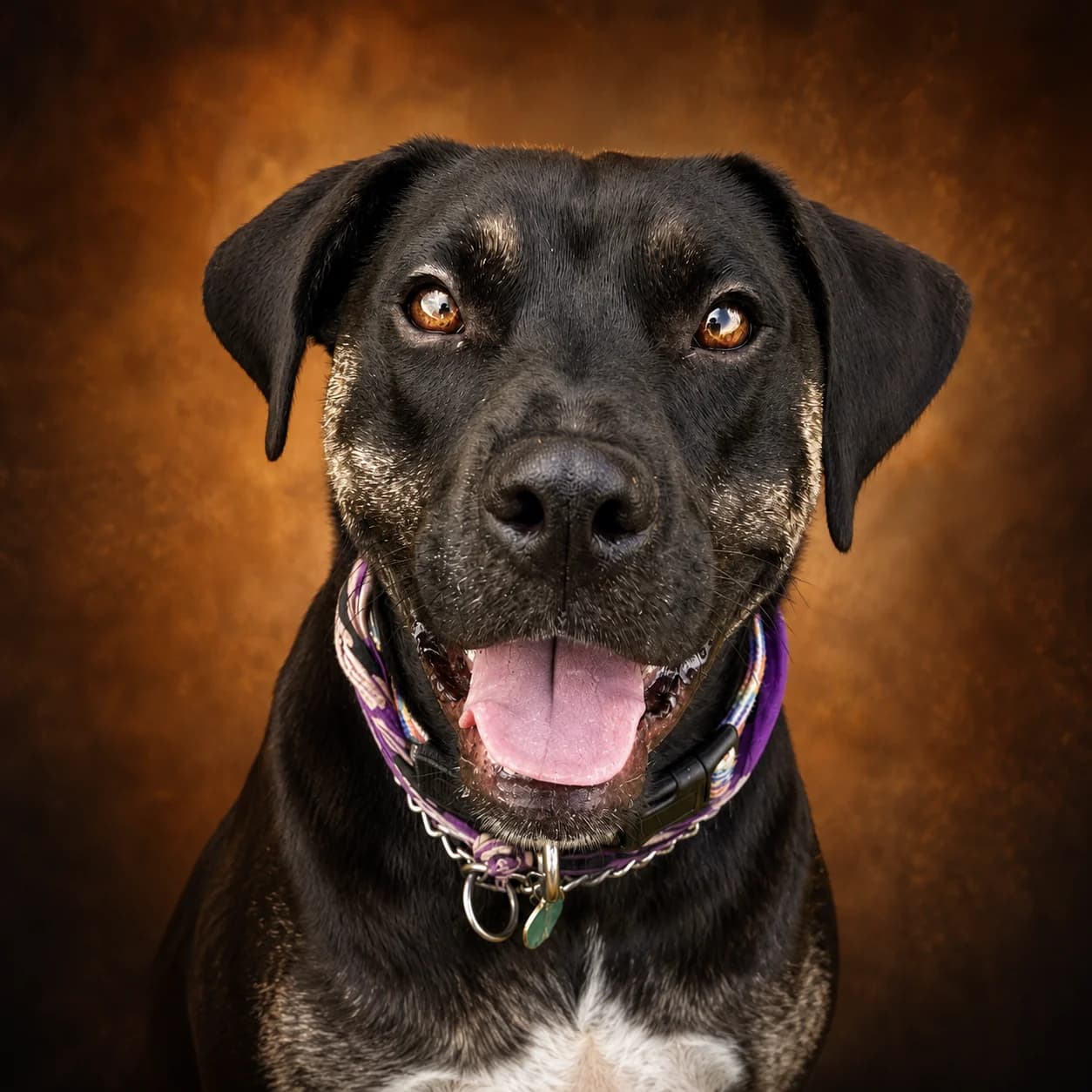
A reviewed PetMorph example
This before-and-after pair uses the same pet photo and the reviewed output for this task.
Custom Pet Portrait FAQ
What photo works best for a pet portrait?
How do the portrait settings affect the result?
What can I do with the generated result?
Why can two results look different?
Explore related PetMorph tools
Continue with a relevant free utility or move into a pet photo creation task.